Migrate from other services
Learn how to export and import users from your own data store.
The WorkOS AuthKit API allows you to migrate your existing user data from a variety of sources. In this guide, we’ll walk through the steps to export, and then import users from your own data store.
While moving authentication related metadata to WorkOS, most applications will continue to store certain user information in their data store. This common subset of data will usually be the following:
While preparing the migration, you’ll want to ensure this information is programmatically available for use in the import step, this can mean:
- Exporting the relevant data to a file such as JSON or CSV.
- Allowing the data to be queried from the data store directly.
After the data is accessible, we can configure the import.
Now that the User data is available, we can import it into WorkOS.
If you have webhook endpoints configured, temporarily disable delivery for the duration of the bulk import to avoid overwhelming your webhook consumers with high volumes of user.created, organization.created, and organization_membership.created events.
You can disable a webhook endpoint using the Update Webhook Endpoint API:
Re-enable the endpoint after the import is complete by setting status back to "enabled".
The WorkOS CLI includes a migrations tool that can import users from a CSV file:
For a guided, interactive experience:
The CLI handles batching and rate limiting automatically.
For each of your users, you can call the WorkOS Create User API. This will create a matching User object within WorkOS.
A successful response will include a new WorkOS user ID, most apps will want to persist this WorkOS user ID alongside the application-local user object.
There are now several options on how to proceed, depending on your application’s needs:
If your users currently use password-based authentication, you can import existing password hashes during the users creation process, or later using the WorkOS Update User API.
WorkOS currently supports the following password hashing algorithms:
bcryptscryptfirebase-scryptsshapbkdf2argon2
For scrypt and pbkdf2 passwords, use the PHC string format.
The hash and salt should be B64 encoded: trim the = characters that represent Base64 padding. Using a PHC-formatting library, like
Node’s @phc/format, should handle this for you.
The following table shows how to map the scrypt and pbkdf2 parameters to the PHC parameters.
scrypt
A valid scrypt PHC formatted string looks like this:
pbkdf2
For pbkdf2 allowed values for digest are sha256 or sha512. The value for iterations is dependent on digest. For sha256 there is a minimum of 600,000 iterations and a max of 1,000,000. For sha512 there is a minimum of 210,000 and a max of 1,000,000.
A valid pbkdf2 PHC formatted string looks like this:
argon2
The variant should be argon2id, but older supported variants include argon2d and argon2i. The version must be 19. The following memory, time (iterations), and parallelism settings are based on OWASP recommendations. Memory is specified in KiB with a minimum of 4,096 KiB (4 MiB) and maximum of 262,144 KiB (256 MiB). For time, there is a minimum of 1 iteration and a maximum of 5 iterations, except for argon2i which has a minimum of 3 iterations. Parallelism ranges from 1 to 8 threads. If your requirements fall outside of these guidelines, please contact support.
A valid argon2 PHC formatted string looks like this:
For firebase-scrypt passwords, refer to the Firebase Migration guide for an example of how to format the password_hash.
For ssha passwords, use the following algorithm:
- Generate a
salt: random bytes - Hash the user’s password and the
saltusing the SHA1 algorithm - Base64 encode the hash followed by the salt
- Prepend the string with
{SSHA}
A high-level representation is: {SSHA}base64(sha1(password + salt) + salt).
Once imported, users can continue to sign-in with their existing password, without having to go through a password reset flow.
If you are unable to export passwords from your existing data store, whether for security reasons or other limitations, you can programmatically trigger a password reset flow using the WorkOS Password Reset API.
This process can be initiated at any time, and doesn’t need to happen during the user import process.
Some applications may want to remove password-based authentication when switching to WorkOS, in favor of another method like Magic Auth. If this is the case for your application, you can skip dealing with passwords entirely.
If you have users who previously signed in using social auth providers, such as Google or Microsoft, those users can continue to sign in with those providers after you’ve migrated to WorkOS.
Check out our integrations page for guidance on configuring the relevant provider’s client credentials in WorkOS.
After your provider is configured in WorkOS, users can sign in with their provider credentials and will be automatically linked to a WorkOS user. WorkOS uses the email address from the social auth provider to determine this match.
Email verification behavior varies depending on whether the provider is known to verify email addresses. For example, users signing in using Google OAuth and a gmail.com email domain will not need to perform the extra verification step.
If your application uses enterprise SAML or OIDC connections for SSO, you can migrate them to WorkOS. The best strategy depends on how many connections you have and whether you control the existing SSO infrastructure.
For smaller deployments, the simplest path is to recreate each connection in WorkOS and coordinate with each customer’s IT team to update their Identity Provider configuration. You can use the Admin Portal to let customers self-service their SSO setup, reducing the coordination burden.
For each connection:
- Create or identify the WorkOS organization matching the existing organization
- Share the Admin Portal link with the customer’s IT team so they can update their IdP configuration to point to WorkOS
- Watch for the
connection.activatedwebhook to roll out the customer to the WorkOS connection
For larger deployments, coordinating with every customer’s IT team is impractical. Instead, you can perform a transparent migration so that IT admins do not need to reconfigure anything on their end. The approach depends on whether you are migrating from an external identity service or from a homegrown SSO implementation.
Route 1: Migrating from an external service (proxy approach)
If you are migrating from an external identity provider (such as Auth0, or another third-party service), you can place a proxy in front of the service’s custom domain to route IdP callback traffic to WorkOS.
This approach requires that you have a custom domain configured with your current provider (e.g., auth.your-domain.com) so that you control the domain routing.
Requirements
- You have a custom domain configured with your current identity provider
- Your SAML enterprise connections do not use SAML Request Signing with the provider’s tenant global key pairs
- Your SAML enterprise connections do not use SAML Response Encryption with the provider’s tenant global key pairs
Configuring the callback proxy
Once connections are imported into WorkOS, configure a proxy in front of your custom domain to route IdP callback traffic to WorkOS. The proxy intercepts callbacks at your custom domain’s callback path and redirects them to your WorkOS custom domain.
The proxy flow works as follows:
- A user authenticates with their IdP, which posts the SAML response or OIDC callback to your custom domain
- The proxy redirects the callback to WorkOS
- WorkOS attempts to find a matching connection:
- If found, it processes the response and redirects to your application’s WorkOS callback
- If not found, it redirects back with a
fallbackquery parameter, and the proxy forwards the original callback to your existing provider
This fallback mechanism ensures zero downtime – connections that haven’t been migrated yet continue to work through your existing provider.
The proxy can be implemented using Cloudflare redirect and transform rules, a Cloudflare Worker, or any reverse proxy you control. Contact support@workos.com for a reference implementation and import assistance.
Route 2: Migrating from a homegrown solution (callback modification)
If your application has its own SSO implementation where you directly handle IdP callbacks, you already control the callback endpoints. Instead of a proxy, you can modify your existing callback handlers to forward IdP responses to WorkOS using a feature flag mechanism.
Preparing connection data
The WorkOS migrations CLI can generate a CSV template for your connection data:
Select “Generate CSV template” and choose the Connections template. This produces a CSV with the following columns:
Fill in the template with your existing connection configurations and send it to support@workos.com for import.
How it works
- Export your connection configurations using the CSV template above and send to support@workos.com for import into WorkOS
- Modify your existing callback endpoint to check a WorkOS Feature Flag before processing the IdP response
- For organizations flagged for WorkOS, forward the IdP response (SAMLResponse or authorization code) to WorkOS for processing
- For organizations not yet migrated, continue processing through your existing flow
This gives you per-organization control over the migration without requiring IdP reconfiguration.
Regardless of which route you use, the authorization URL piece works the same way. You can use WorkOS Feature Flags to control which organizations use WorkOS SSO versus your existing provider during the migration. Create a feature flag (e.g., workos-sso-enabled) and target it to specific organizations as you migrate them.
This lets you gradually migrate organizations to WorkOS SSO, verify each one works correctly, and roll back individual organizations if needed – all without code deployments.
Many applications allow users to sign up at any time. If your app offers this feature, then you should consider the timing of your migration. If any users sign up after you’ve completed importing users into WorkOS, but before you’ve switched to WorkOS for authentication, then those users will have been omitted from the migration process.
There are two main strategies to handle this:
The simplest solution is to schedule an appropriate time for the migration and disable signup while in progress. This may be done using temporary code added to your application and controlled by a feature flagging system.
After the migration is complete, your application should be updated to perform authentication using WorkOS, and the signup flag block disabled. This helps to ensure the export/import process captures all active users.
For applications that want to avoid disabling signups, a “dual-write” strategy can be used.
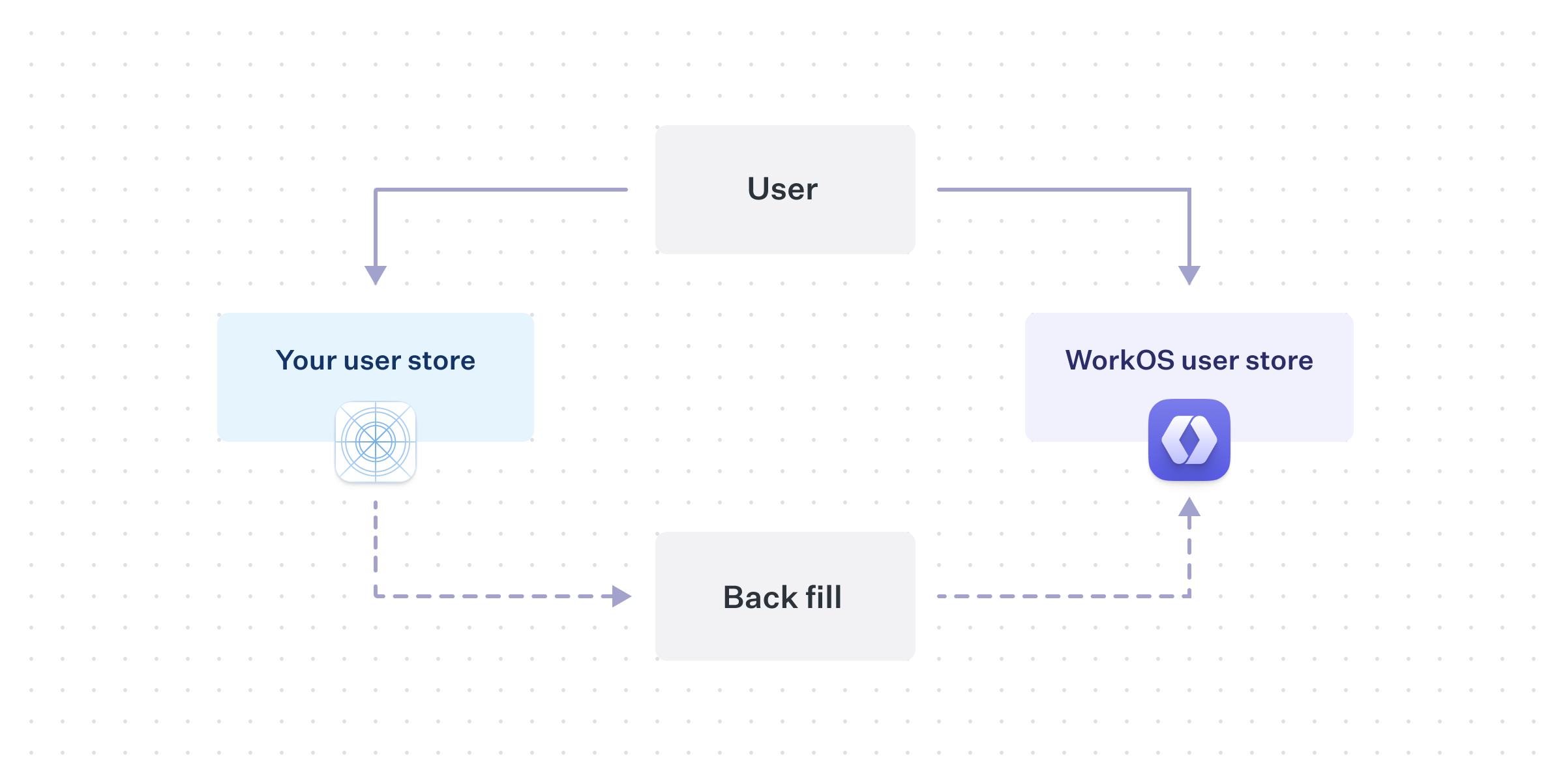
When a new user signs-up, in addition to creating a user record in the existing user store, the application should also create a matching record in WorkOS using the Create User API. As time passes, WorkOS will stay consistent with future new users, but a migration will still need to be performed for the historical set of users.
You will need to perform the same export and import process into WorkOS, but keeping in mind that some users will already exist in WorkOS as a result from the “dual-write”.
While this minimizes forms of downtime for your application, there are other complications. For example, if a user updates their email or authentication method, you will need to perform the same update in WorkOS, at least until the migration process is complete.
Which to choose?
Your timeline for completing the migration, along with your user’s tolerances for disruption, will affect which strategy makes more sense for your application.
Disabling signups, or even sign-in entirely, and doing a “big-bang” migration by moving all users at the same time, could be reasonable for a smaller application. However, larger applications that are on the critical path for their customers may need a more careful path in order to provide consistent access.
User management migration complexity can vary, so it is important to consider how existing application constraints will transfer to WorkOS. If you have any questions, reach out to support@workos.com or via your team’s WorkOS Slack channel for more help planning your migration.